Setting Discord role classifications for users pairing with their UID from the Affiliate Portal!
This is a MEXC Official Discord Bot (@MEXC_Official_DCBot) designed for community management for Affiliates. Certain core functions made available by the Bot are to manage channels, set welcome messages, set channel identity criteria, and improve community activity.
Discord Channel Management: Supports binding and managing multiple Discord channels, with configuration of channel rules and bot features.
Authentication: User role assignment and classification logic to facilitate discord channel management and operations.
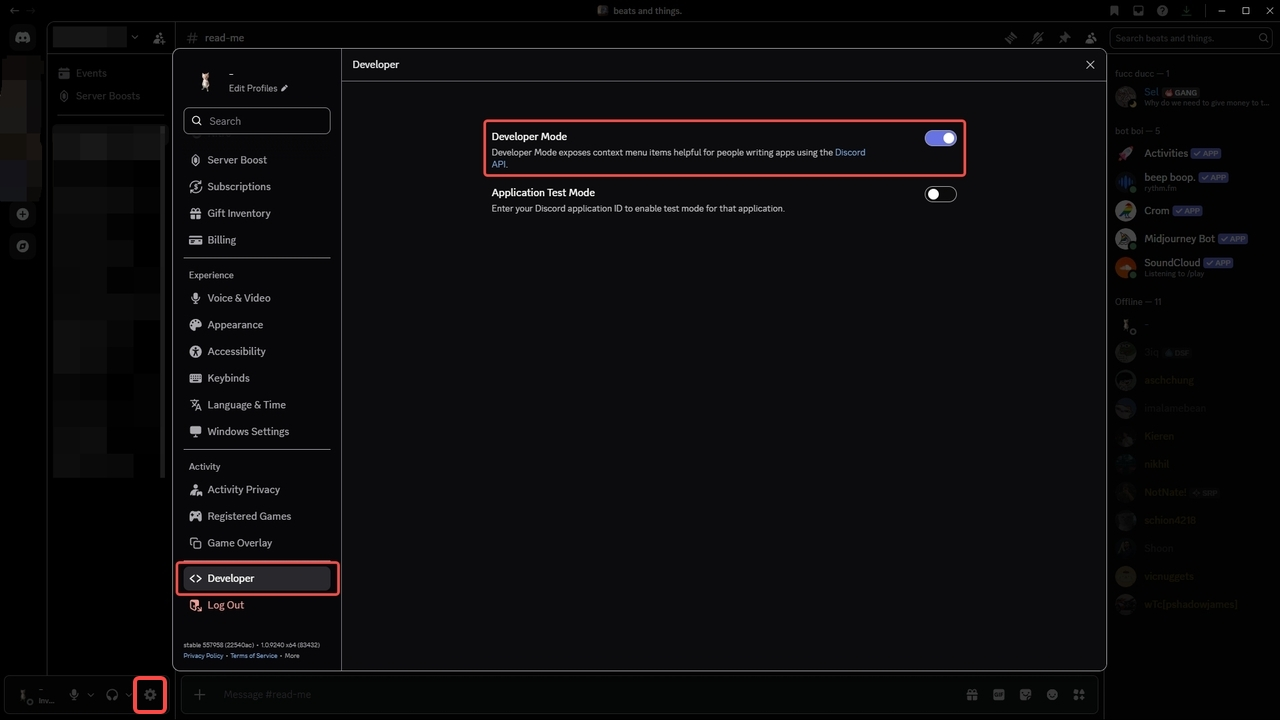
It is recommended to turn on Developer Mode for additional adjustments for your Discord Bot.
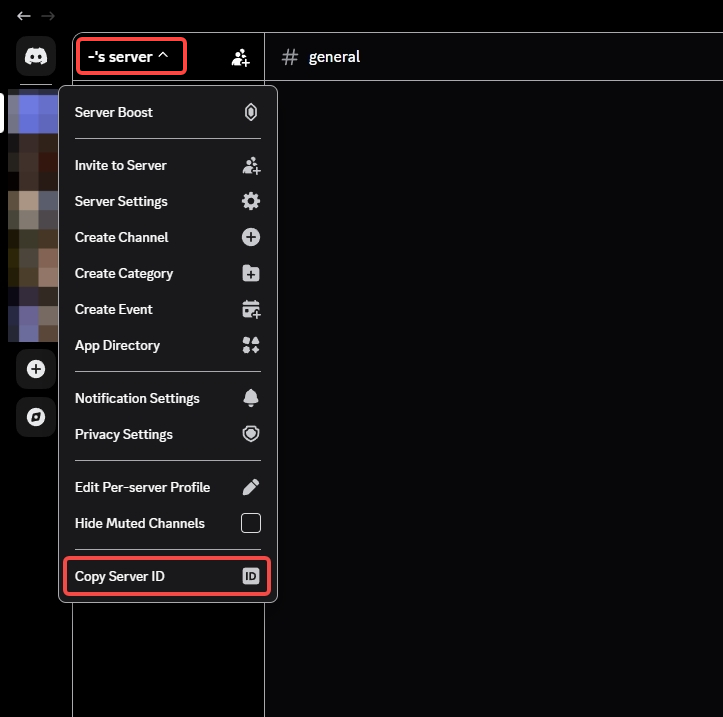
1. Turn on Developer Mode in the settings on Discord.
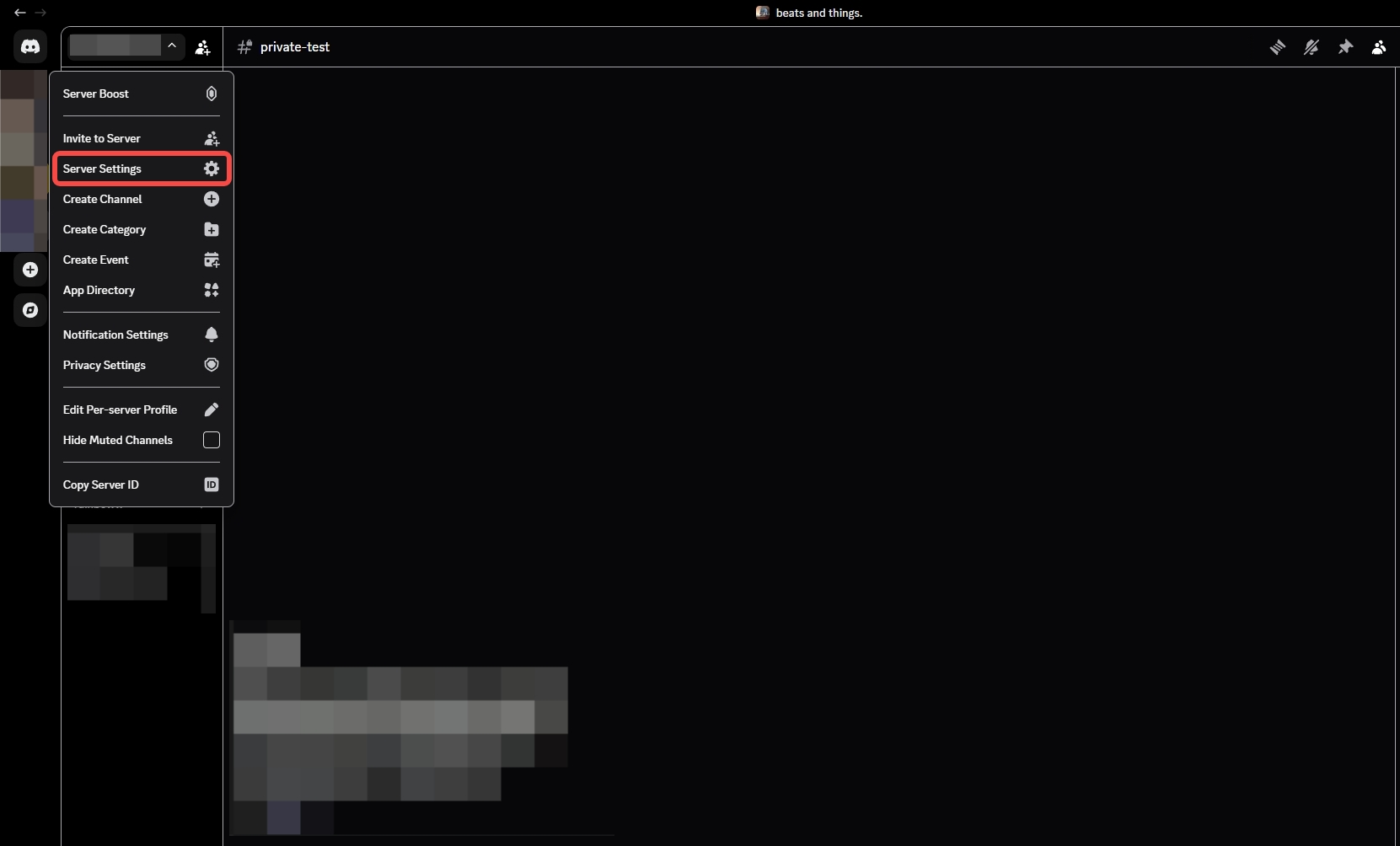
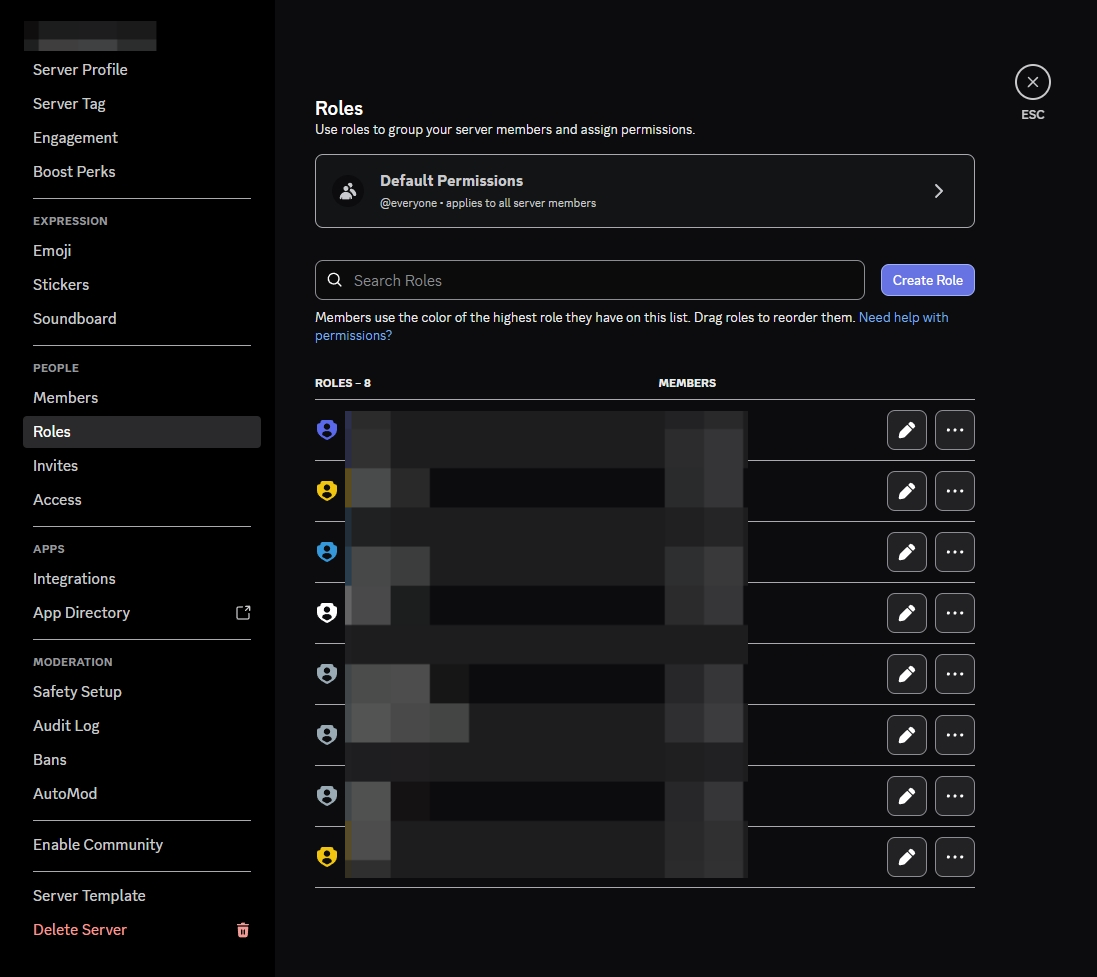
2. Add Roles as deemed fit for your Discord Bot or your Community.
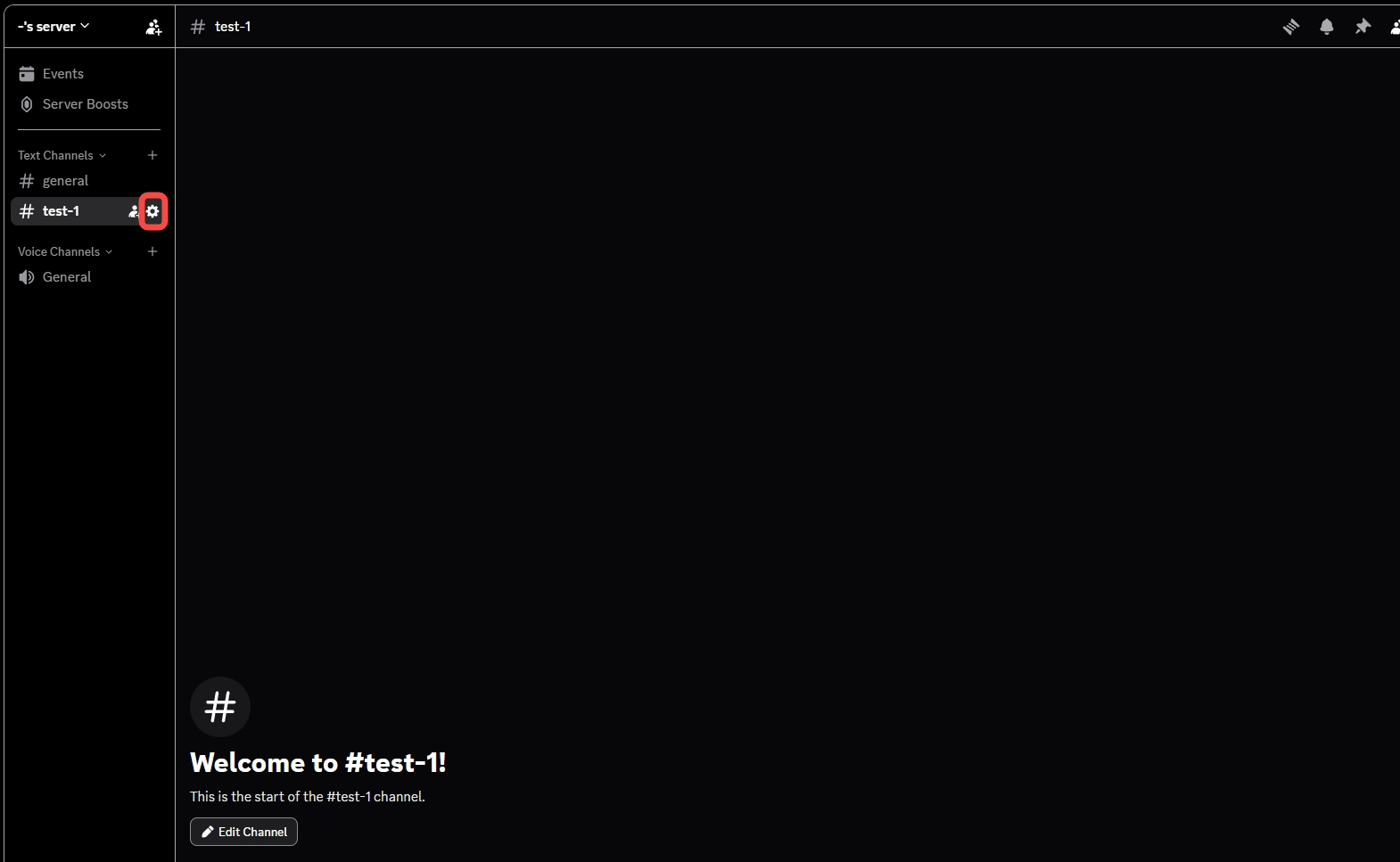
3. Adjust relevant Discord Channel specific accessibility for specific role accesses.
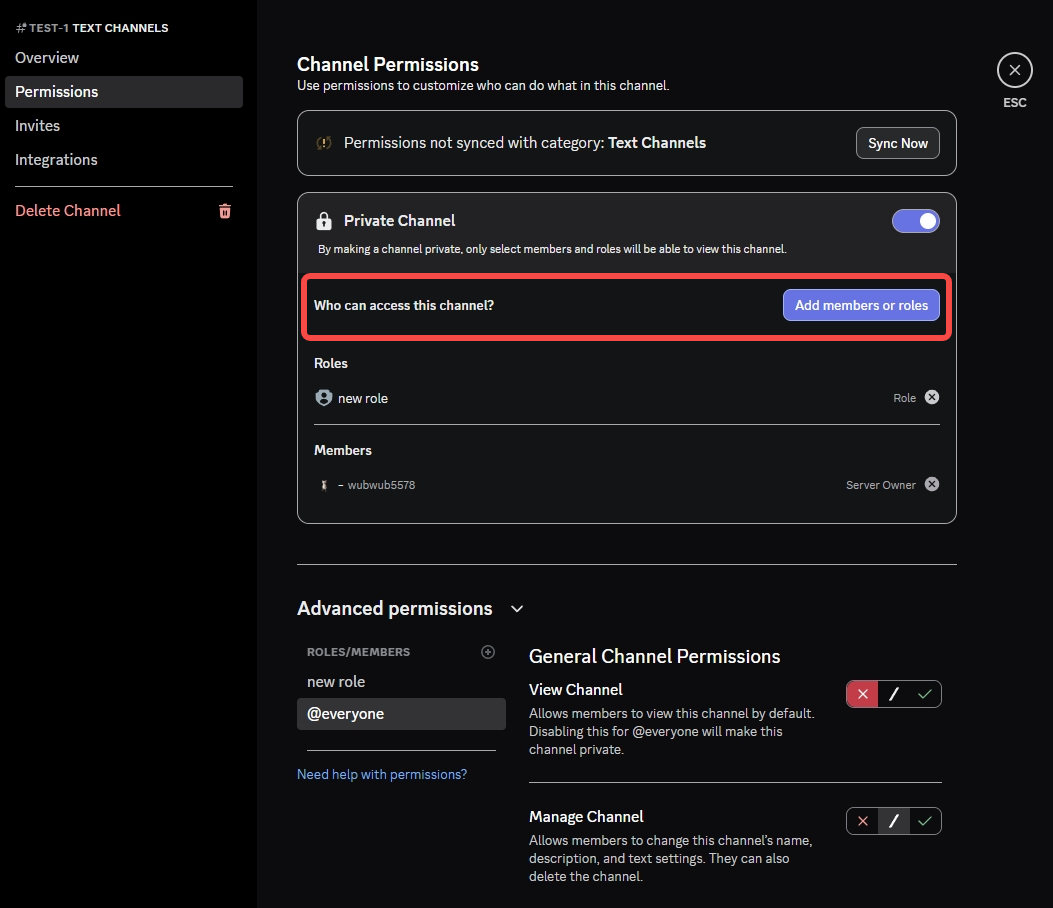
4. On the [MEXC Affiliate Dashboard] {https://affiliates.mexc.com}, under the Referral Strategy category, click onto the DC Bot and add the @MEXC_Officiall_DCBot via the “Add Server”.
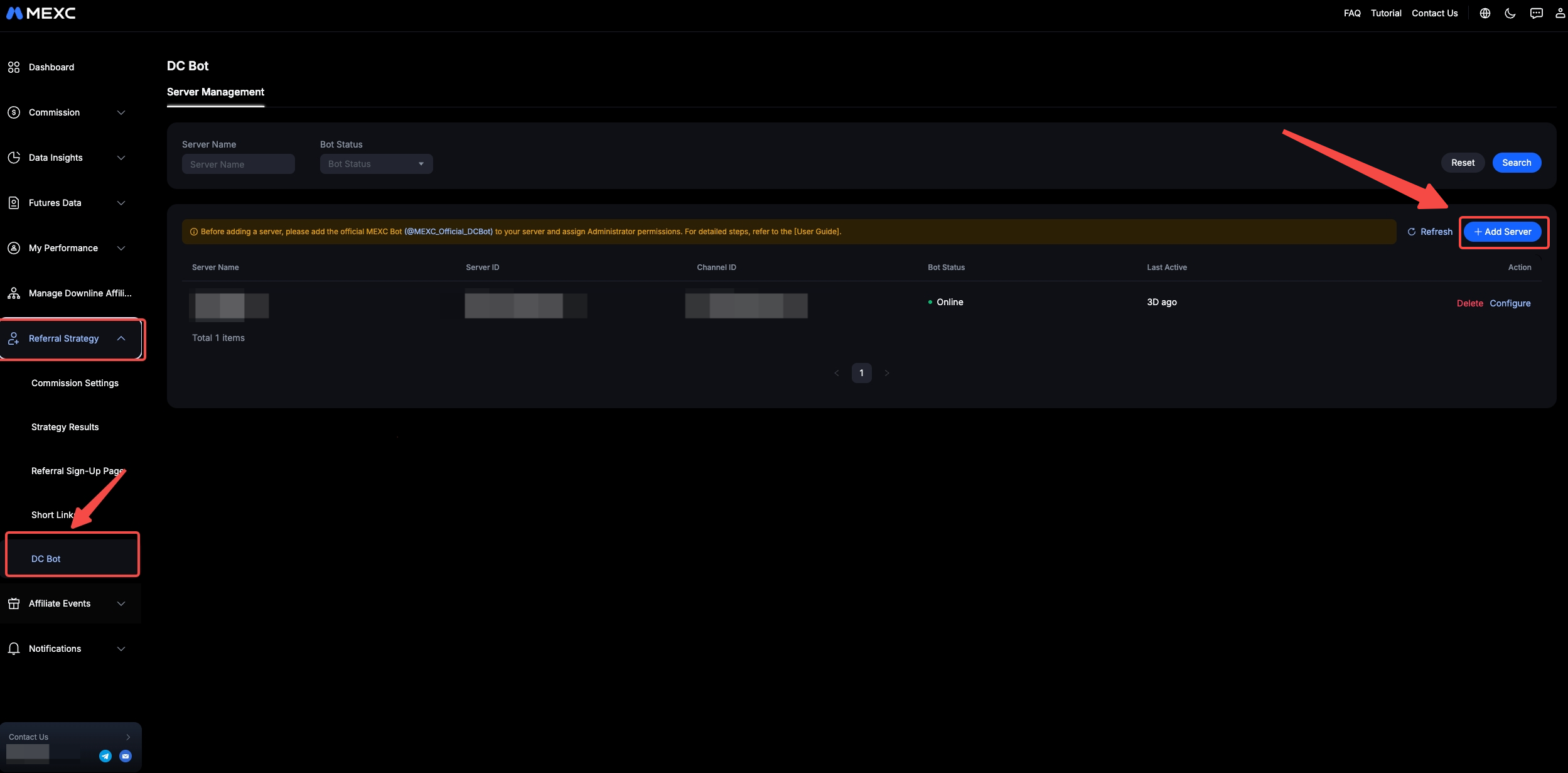
5. You will have the option to add the @MEXC_Official_DCBot through the Server ID and Channel IDs.
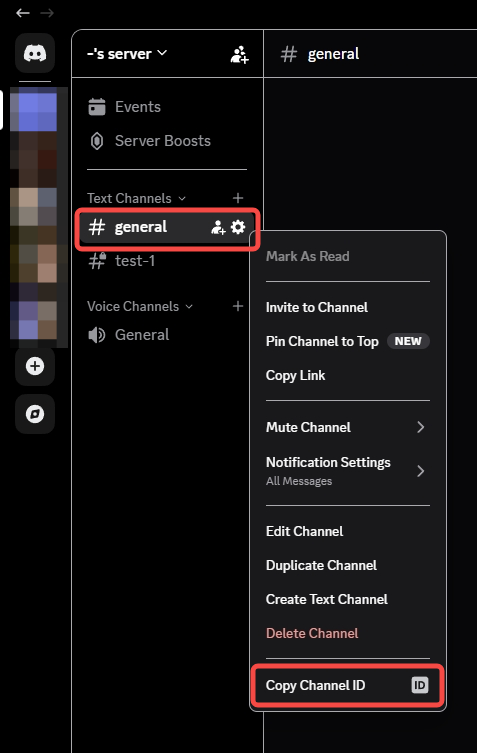
a. Server IDs and Channel IDs are available after turning on Developer Mode on Discord in the settings (refer step 1).
b. The Channel ID is specific to the Bot for them to conduct the UID check in that particular channel
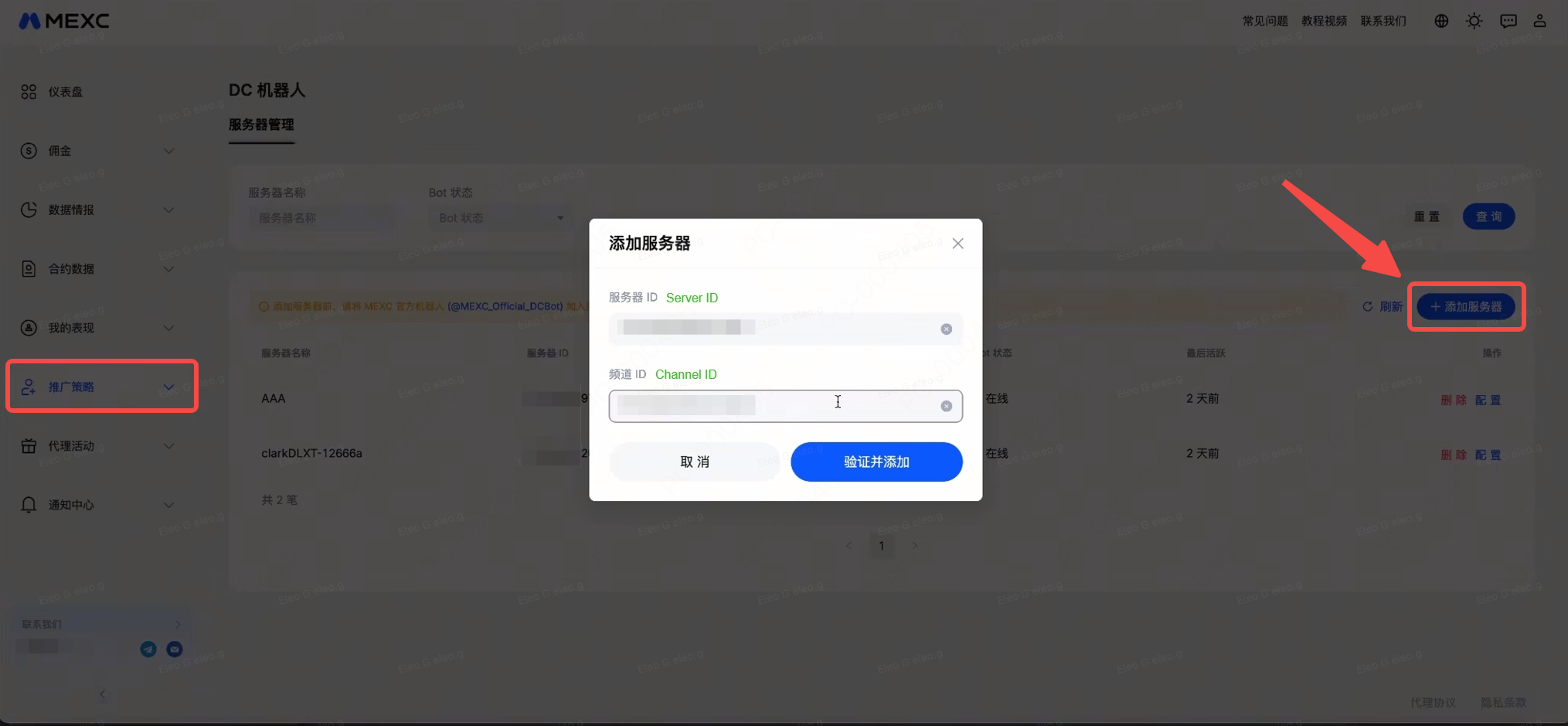
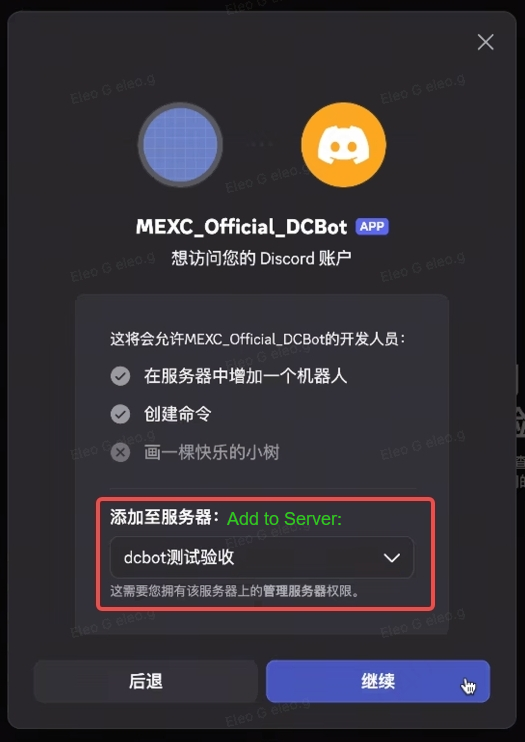
Discord Bot Management:
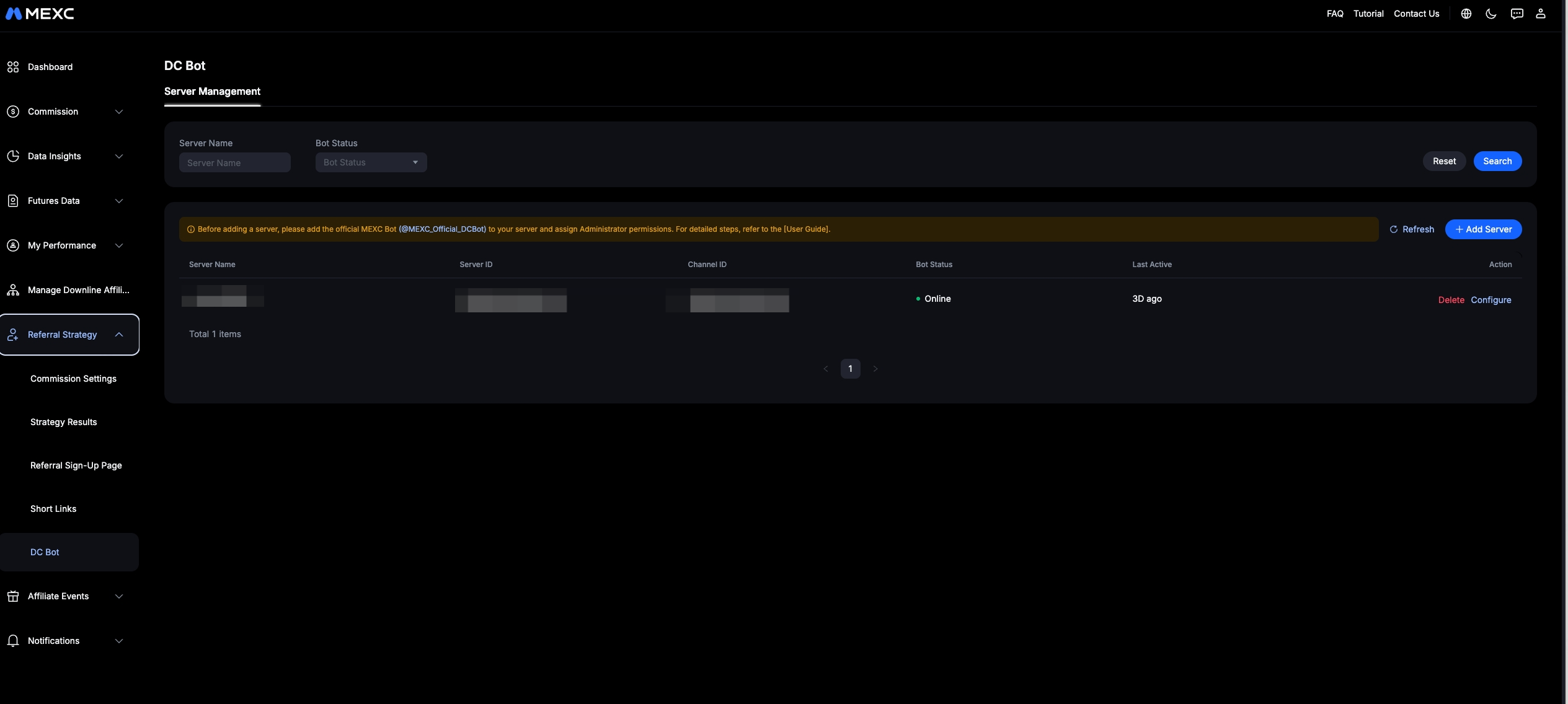
Server name involved
Status & Last active
Configure & Delete Bot
Only one server can be connected to the bot
There will be a 5 minute delay in syncing between Discord and Affiliate Portal
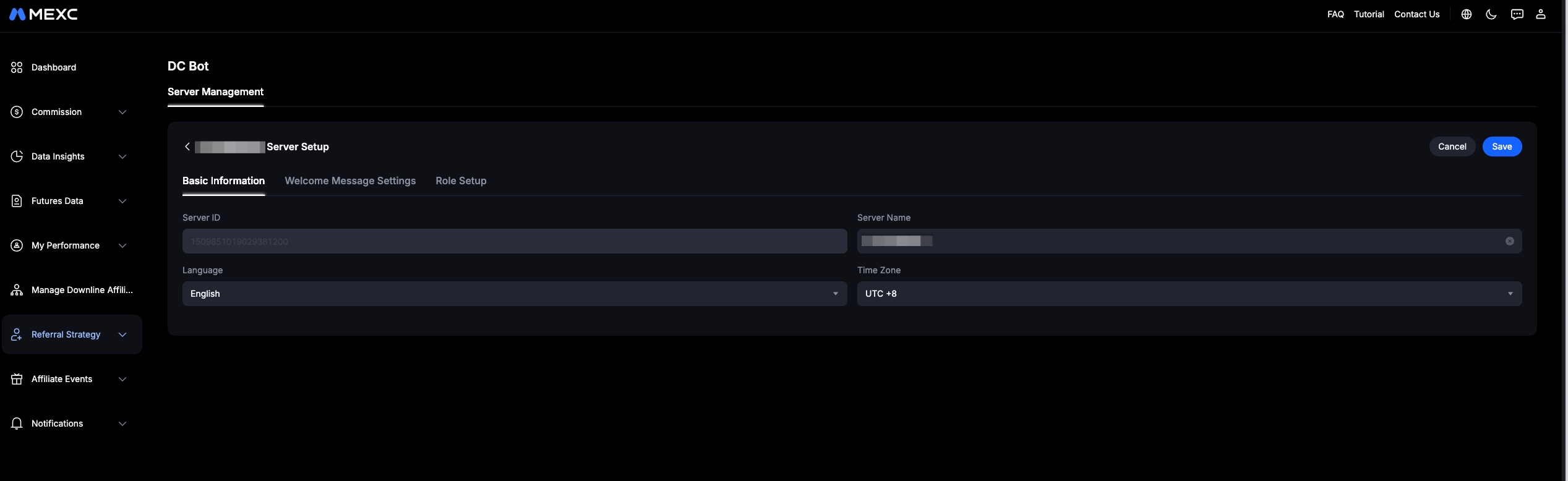
Basic Information
Timezone (for automatic push notifications/messages)
Language (may affect Welcome message)
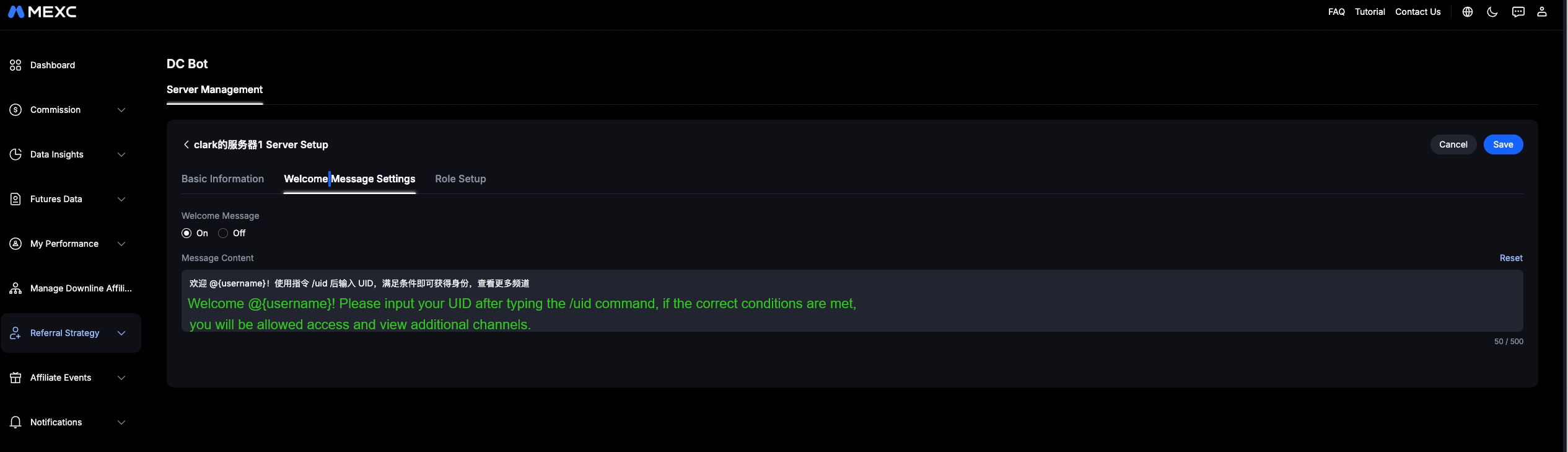
Welcome Message
Adjustment and preview
Default Welcome Message - The language used for the default welcome message will follow the language configured in the Basic Information settings above.
Any alterations to the Welcome Message cannot be adjusted by the system's adjusted language under the Basic Information settings above.
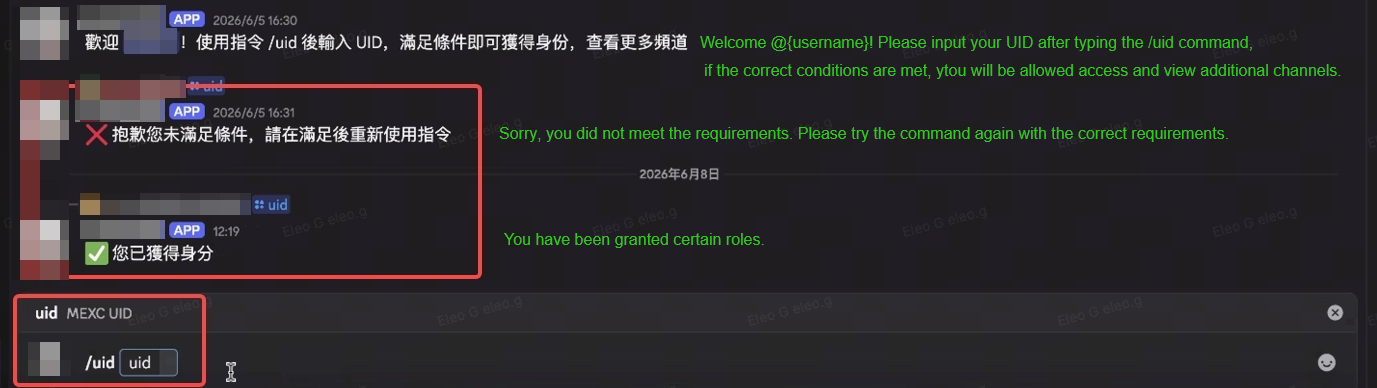
Role Assignment (Auto)
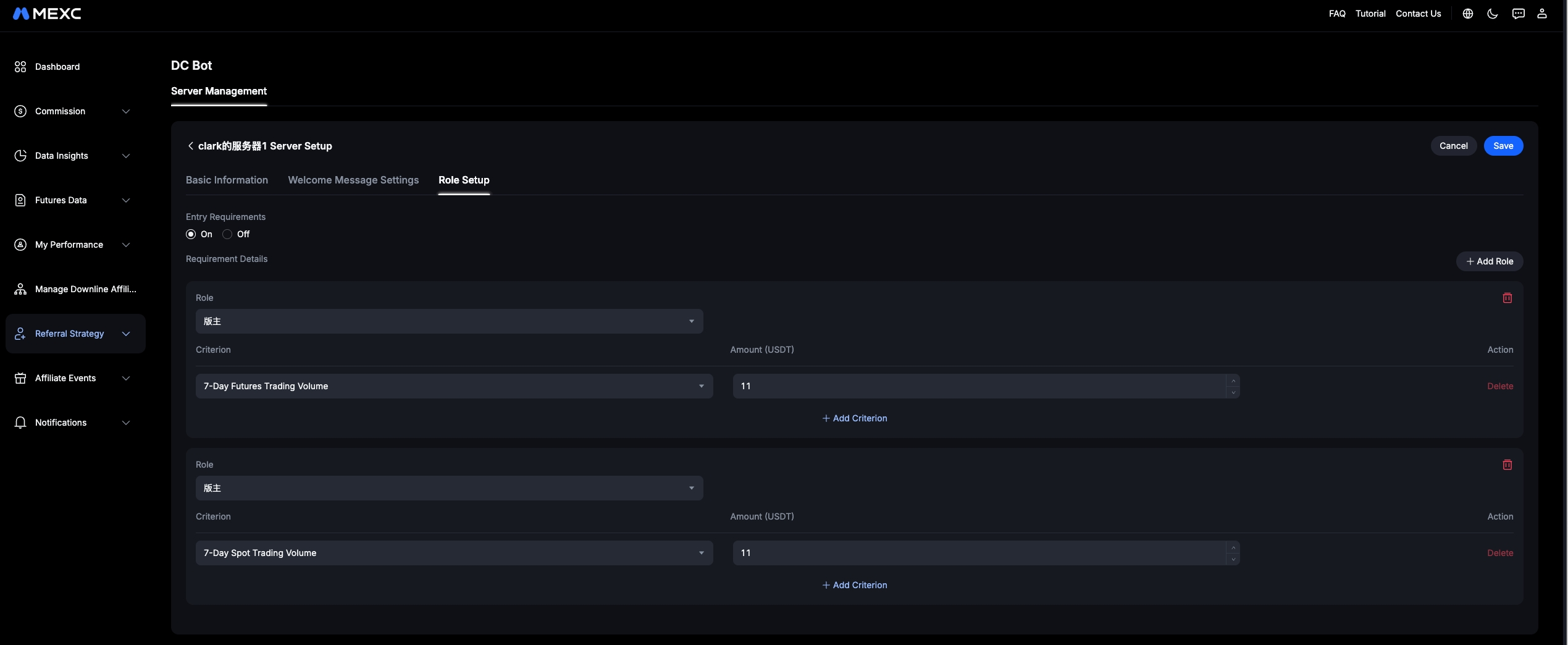
Auto role assignment after entering user entering respective UIDs with:
Spot/Futures Trading Volume in the past 7 days/30days
Net Deposits past 30 days
Amount of USDT
1. Where to find my Server ID and Channel ID?
Users need to turn on Developer Mode in their settings before they can see their ID.
2. Why do I need to Configure Server ID and Channel ID?
There can be multiple Channel IDs under one server, which allows the Bot to conduct the role/UID eligibility check in that particular channel.
3. How to configure users to enter different channels?
Upon joining the Discord server as a normal user, and configuring their roles on the specified Channel, when a user meets the configured role requirements, while entering their respective /UID in the Discord channel. The system will verify their eligibility and automatically assign the corresponding role upon successful verification, allowing access to channels that is accessible by that particular role.
4. Why only one server?
If multiple servers are configured for the bot, the system cannot determine which channel the user is trying to access. Therefore, each account is limited to configuring only one server.
5. Why are my configured role requirements not taking effect on Discord?
There will generally be a 5-minute delay. If it does not take effect after 5 minutes, you can contact your Operations Manager to check.
6. Why is my Welcome Message in Chinese when my reply is in English?
Please configure your selected language under the Basic Information settings into your preferred language.
The Welcome Message has been altered (user-entered), the language is fixed and will not be changed automatically. Please type in your preferred Welcome Message and language.
7. Why didn't I receive the role after meeting the role requirements/entering the UID?
In the Roles settings, ensure that the MEXC_Official_DCBot role is placed at the highest position in the role hierarchy.
Do check if the MEXC_Official_DCBot role is given the correct permissions.

Setting Discord role classifications for users pairing with their UID from the Affiliate Portal!
This is a MEXC Official Discord Bot (@MEXC_Official_DCBot) designed for community management for Affiliates. Certain core functions made available by the Bot are to manage channels, set welcome messages, set channel identity criteria, and improve community activity.
Discord Channel Management: Supports binding and managing multiple Discord channels, with configuration of channel rules and bot features.
Authentication: User role assignment and classification logic to facilitate discord channel management and operations.
It is recommended to turn on Developer Mode for additional adjustments for your Discord Bot.
1. Turn on Developer Mode in the settings on Discord.
2. Add Roles as deemed fit for your Discord Bot or your Community.
3. Adjust relevant Discord Channel specific accessibility for specific role accesses.
4. On the [MEXC Affiliate Dashboard] {https://affiliates.mexc.com}, under the Referral Strategy category, click onto the DC Bot and add the @MEXC_Officiall_DCBot via the “Add Server”.
5. You will have the option to add the @MEXC_Official_DCBot through the Server ID and Channel IDs.
a. Server IDs and Channel IDs are available after turning on Developer Mode on Discord in the settings (refer step 1).
b. The Channel ID is specific to the Bot for them to conduct the UID check in that particular channel
Discord Bot Management:
Server name involved
Status & Last active
Configure & Delete Bot
Only one server can be connected to the bot
There will be a 5 minute delay in syncing between Discord and Affiliate Portal
Basic Information
Timezone (for automatic push notifications/messages)
Language (may affect Welcome message)
Welcome Message
Adjustment and preview
Default Welcome Message - The language used for the default welcome message will follow the language configured in the Basic Information settings above.
Any alterations to the Welcome Message cannot be adjusted by the system's adjusted language under the Basic Information settings above.
Role Assignment (Auto)
Auto role assignment after entering user entering respective UIDs with:
Spot/Futures Trading Volume in the past 7 days/30days
Net Deposits past 30 days
Amount of USDT
1. Where to find my Server ID and Channel ID?
Users need to turn on Developer Mode in their settings before they can see their ID.
2. Why do I need to Configure Server ID and Channel ID?
There can be multiple Channel IDs under one server, which allows the Bot to conduct the role/UID eligibility check in that particular channel.
3. How to configure users to enter different channels?
Upon joining the Discord server as a normal user, and configuring their roles on the specified Channel, when a user meets the configured role requirements, while entering their respective /UID in the Discord channel. The system will verify their eligibility and automatically assign the corresponding role upon successful verification, allowing access to channels that is accessible by that particular role.
4. Why only one server?
If multiple servers are configured for the bot, the system cannot determine which channel the user is trying to access. Therefore, each account is limited to configuring only one server.
5. Why are my configured role requirements not taking effect on Discord?
There will generally be a 5-minute delay. If it does not take effect after 5 minutes, you can contact your Operations Manager to check.
6. Why is my Welcome Message in Chinese when my reply is in English?
Please configure your selected language under the Basic Information settings into your preferred language.
The Welcome Message has been altered (user-entered), the language is fixed and will not be changed automatically. Please type in your preferred Welcome Message and language.
7. Why didn't I receive the role after meeting the role requirements/entering the UID?
In the Roles settings, ensure that the MEXC_Official_DCBot role is placed at the highest position in the role hierarchy.
Do check if the MEXC_Official_DCBot role is given the correct permissions.