

How to Use the MEXC Asset Support Checker: An Essential Tool Before Transferring Assets
Key Takeaways:
- The MEXC Asset Support Checker is a no-login tool that helps you quickly confirm whether MEXC supports your assets before you transfer them.
- You can check assets by uploading screenshots or entering token names manually, making the tool easy to use even for beginners.
- The tool uses intelligent recognition technology and does not retain screenshot data after scanning.
- Results are presented in an asset support report covering Spot, Futures, and Earn products.
1. What Is the MEXC Asset Support Checker?
When a crypto trading platform stops operating, users may need to transfer their assets elsewhere. Their main concerns are whether their assets will remain secure and whether the transfer process will go smoothly. The MEXC Asset Support Checker is an official tool designed to address these concerns.
The Asset Support Checker helps you quickly determine whether the assets held on your previous platform are available for trading on MEXC before you make a transfer. It has three key advantages: no login is required, no account access is requested, and screenshot data is not retained after scanning.
Please note that the Asset Support Checker only provides asset support information. It does not transfer assets automatically. You can use the report to plan your transfers.
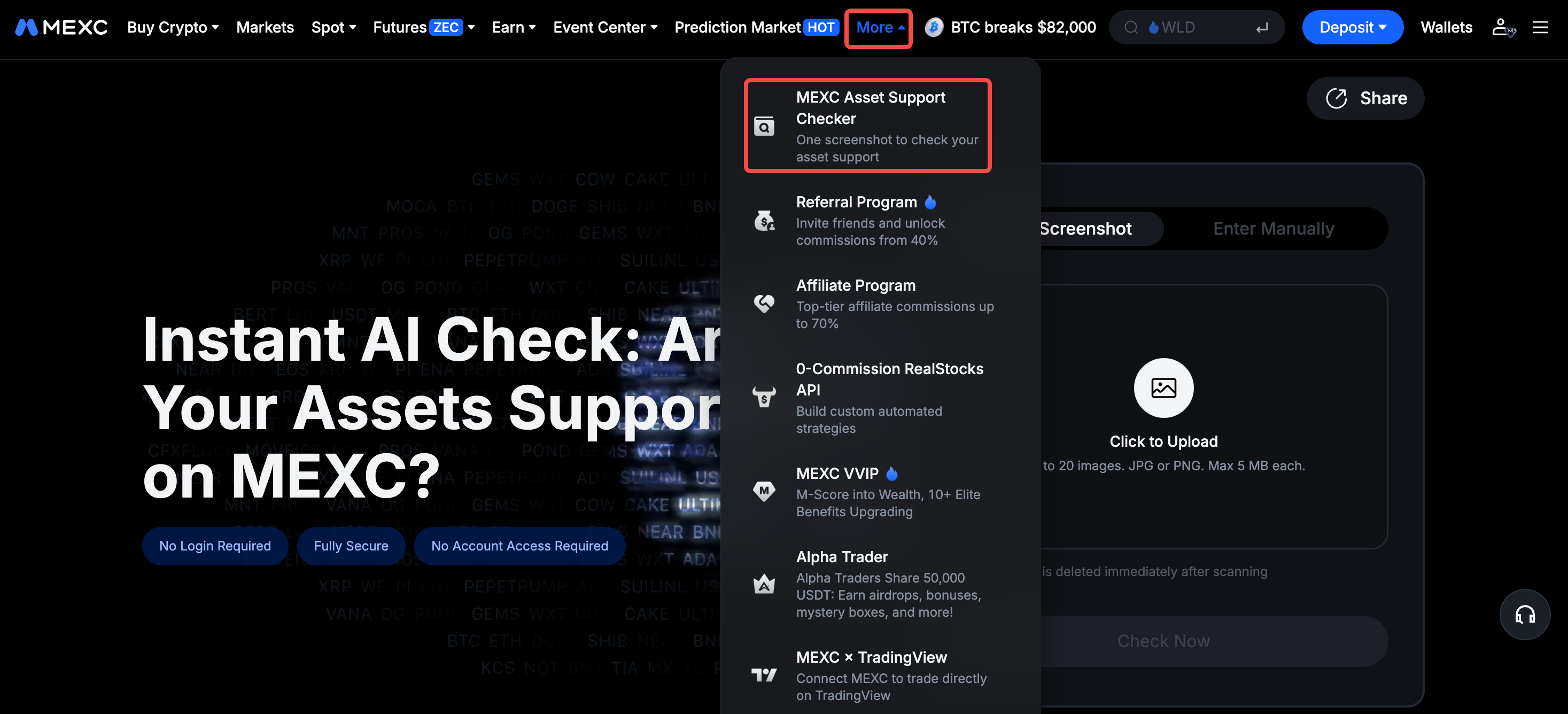
2. Two Ways to Check Asset Support
2.1 Upload screenshots for intelligent recognition
This is the quickest way to check your assets. Follow these steps:
1) Open the tool: Go to the MEXC Asset Support Checker. No registration or login is required.
2) Upload asset screenshots: Select Upload Screenshot, then click the upload area and choose screenshots of your assets from your photo library or folder. You can upload up to 20 images at a time. Common image formats are supported, and each image must be no larger than 5 MB.
3) Manage uploaded images: Uploaded screenshots appear as thumbnails, and the page displays the number of images uploaded. If you upload the wrong image, you can remove it individually or select Clear All to remove all images.
4) Start the scan: After confirming that the screenshots are correct, click Check Now. The system will automatically identify the asset information in the images.
2.2 Enter token names manually
If uploading screenshots is inconvenient, select Enter Manually. Enter a token name, such as BTC, and click Add. You can add up to 100 tokens. If you enter a token incorrectly, remove its tag and enter it again.
Both methods use the same checking process and generate the same report. To start over, click Upload Again to clear all data and reset the tool.
3. View the Asset Support Report
After the scan is complete, the system generates a clear asset support report. You can see at a glance whether each asset is supported across MEXC Spot, Futures, and Earn products.
Once you confirm that your assets are supported, you can plan your transfers with confidence and take advantage of MEXC benefits, including 0 fees for Spot and Futures trading and enhanced annual percentage yields for new users on Earn products.
4. Important Notes When Using the Asset Support Checker
Query limit: Each IP address can run up to 20 checks within 24 hours. Once the limit is reached, the system will ask you to try again the following day.
If recognition fails: If the tool cannot identify any assets in a screenshot, upload a clearer image or enter the token names manually.
Peak-period delays: When the system is processing a large number of images, you may be asked to try again later. Consider checking during off-peak hours. Logged-in users may receive a higher query limit.
Screenshot quality: Make sure token names are clear and unobstructed in your screenshots. Avoid blurry or partially covered text to improve recognition accuracy.
When transferring assets, checking support in advance is the first step toward reducing uncertainty. The MEXC Asset Support Checker makes it easy to understand which assets are supported before you transfer them. Visit the MEXC website and try the Asset Support Checker today for a safer, smoother transfer experience.